
inUSB Studio
MONITOR · MAP · DIAGNOSE
Everything plugged into your Mac as a clear map: which hub each device sits on,
how fast it’s connected and what power it asks for.
How it works
- 01
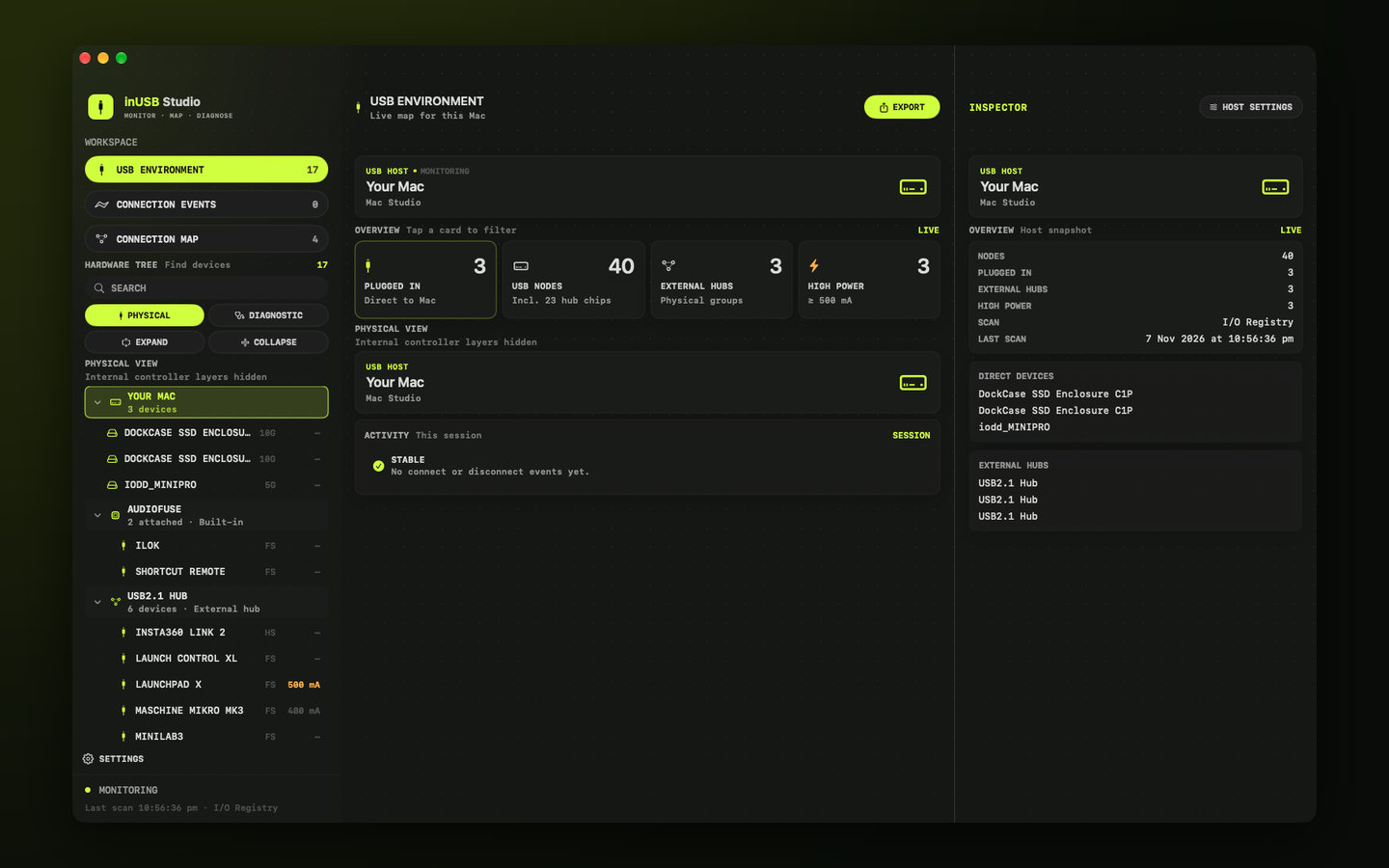
See what’s plugged in
Physical View groups devices the way they’re really connected: your Mac, your hubs and docks, then the devices on them.
- 02
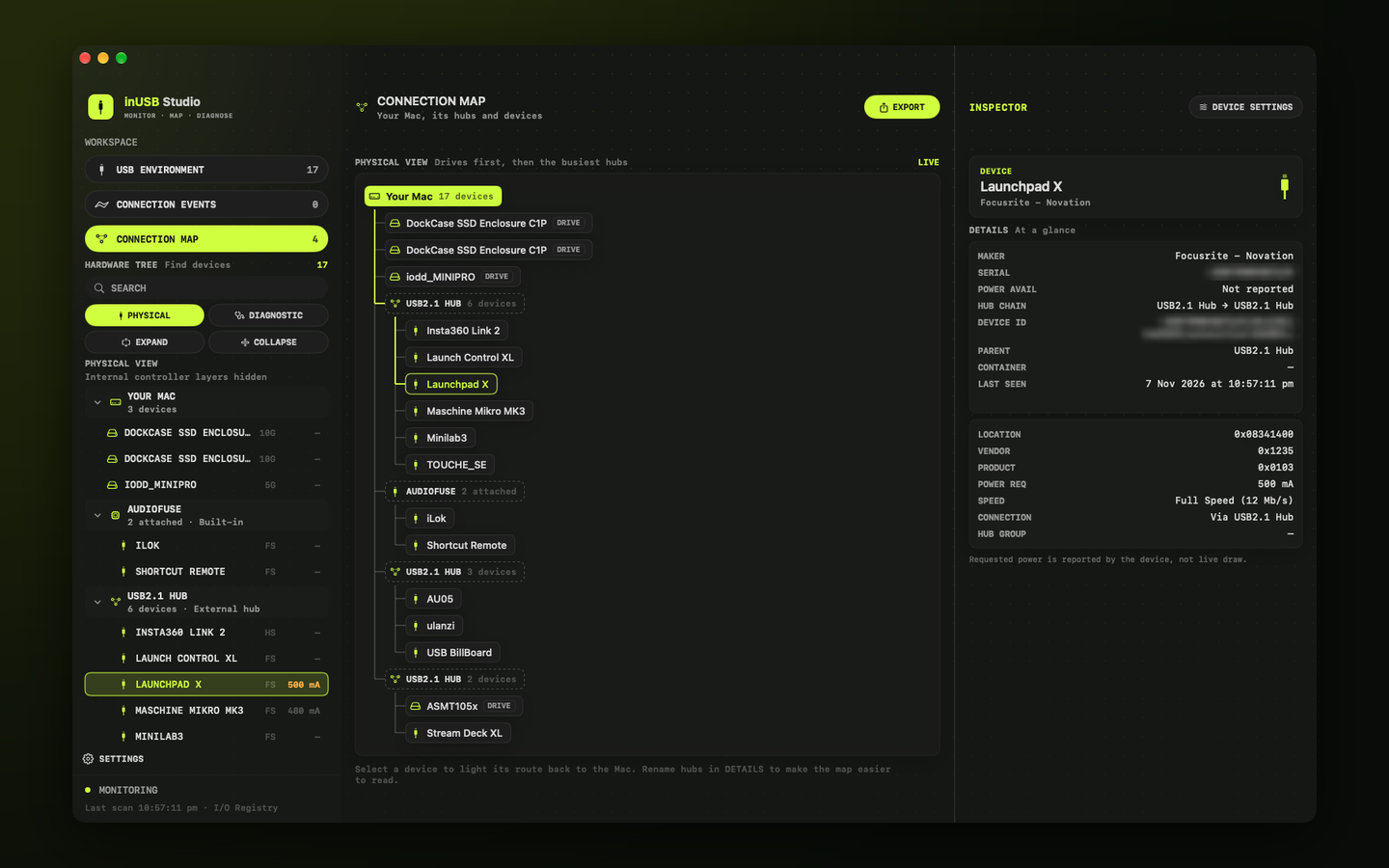
Follow the route
The Connection Map draws your Mac, hubs and devices as a tree. Select a device to light up its route back to your Mac.
- 03
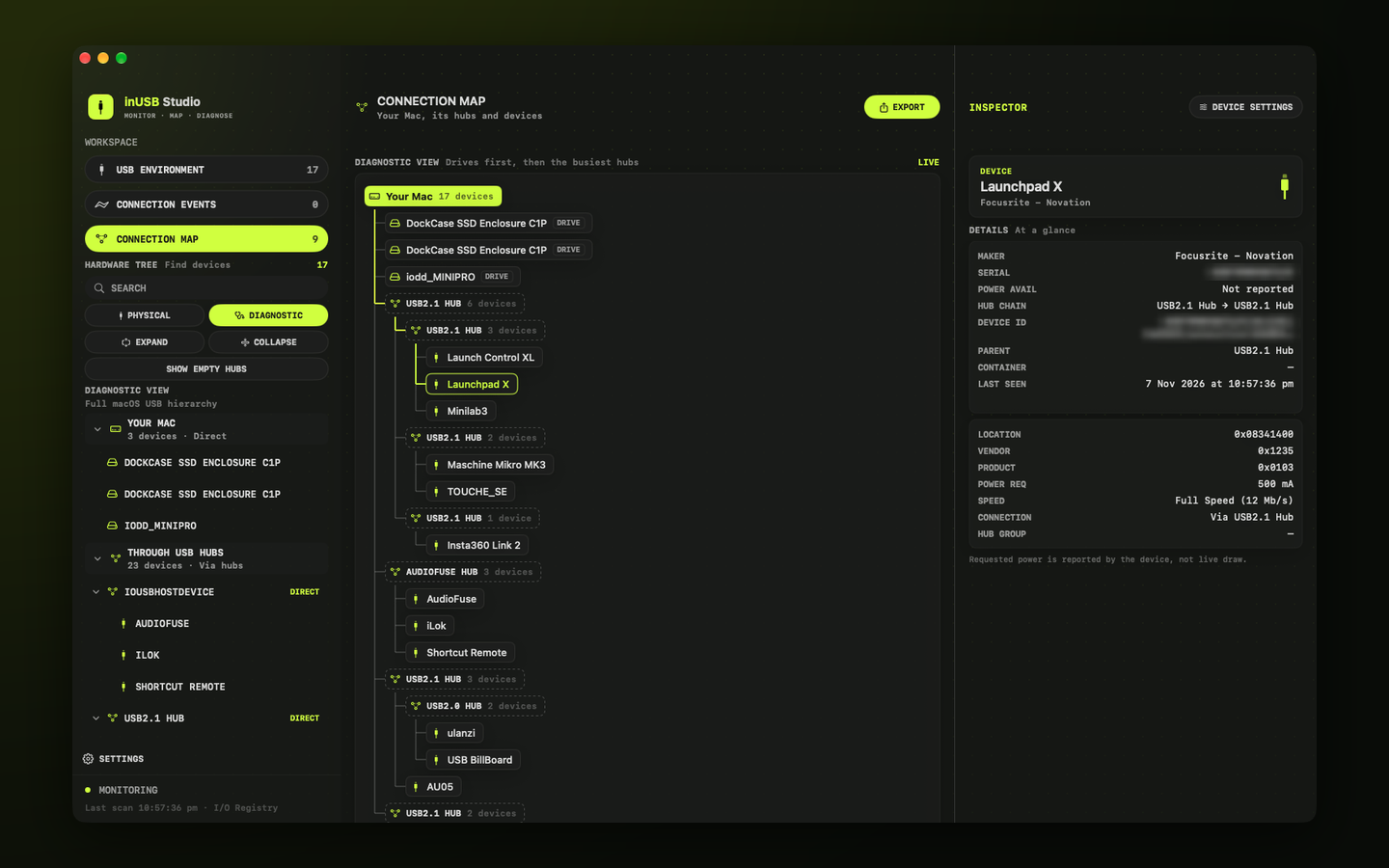
Dig into the details
Diagnostic View shows the full hierarchy macOS reports, and the inspector shows speed, IDs, requested power and the path back.
- 04
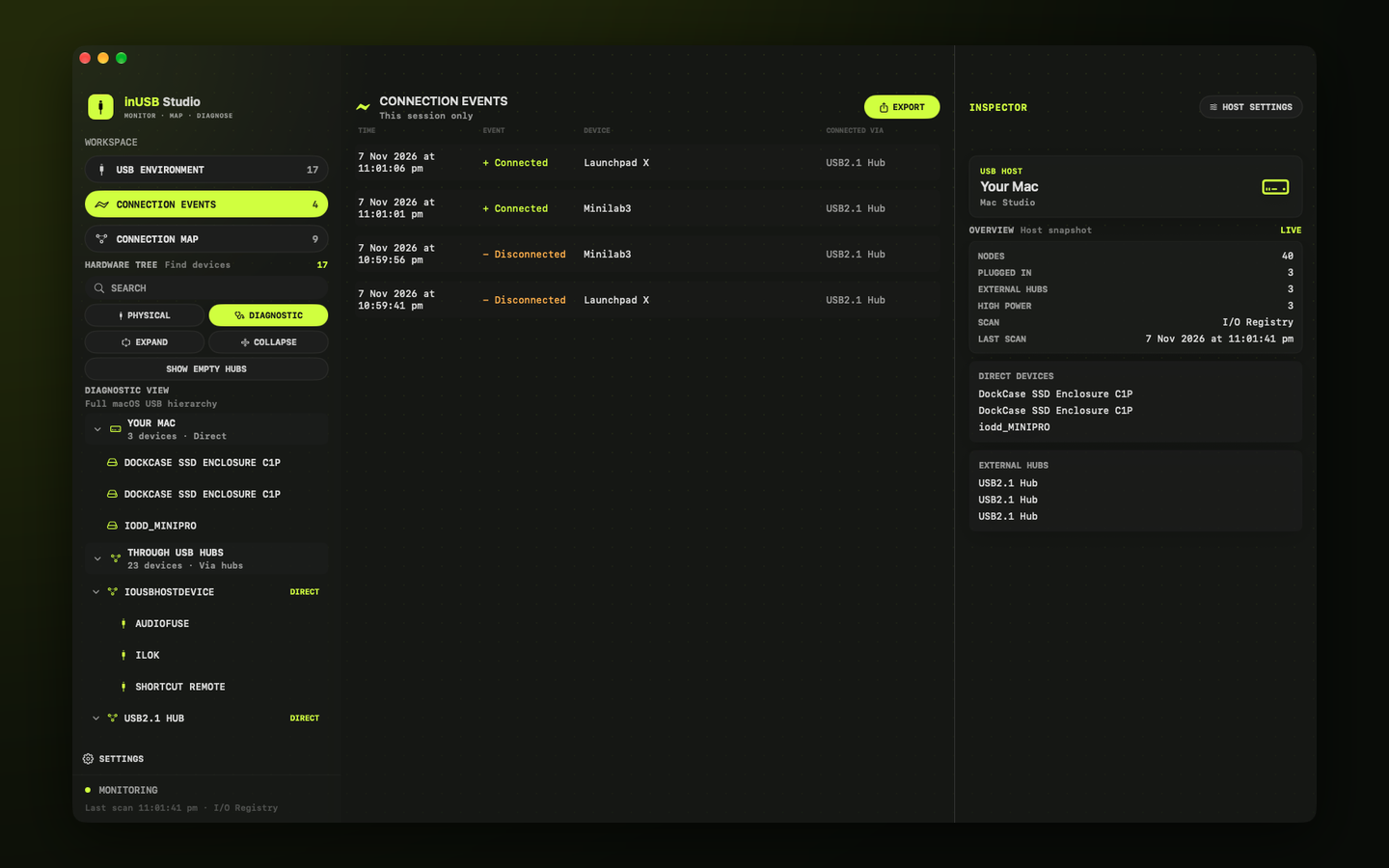
Catch every connection
Connection activity lists devices as they connect and disconnect, and the whole tree exports as text for notes or support.
Map
- Physical and Diagnostic tree views
- A Connection Map with the route to any device
- Device inspector: speed, IDs, serial, requested power, connection path
- Search the tree
Organise
- Friendly device names that follow hardware from port to port
- Hub groups and icons
- Connect and disconnect activity
- Export the USB tree as plain text
- Everything stays on your Mac: no helper tools, no network
Details
- Version
- 1.0
- Requires
- macOS 26 or later
- Category
- Utilities
- Exports
- Plain-text USB tree
- Data
- Not collected